Set Up ResaleWallet Before A Payout
Liberty 6.4b lets you begin a consignor's ResaleWallet registration and send the validation email without creating a payout. You can help the consignor get ready while they are in the store, rather than waiting until their first payment.
Before You Begin
Your store must be enabled for ResaleWallet. If it is not set up yet, start with ACH Eligibility and Initial Setup.
Have the consignor confirm the email address they will use for ResaleWallet. Review Required Consignor Fields if their Digital Payout ID needs to be entered or corrected.
Start Consignor Setup
- In the Inventory Module, select Account List and open the correct consignor account.
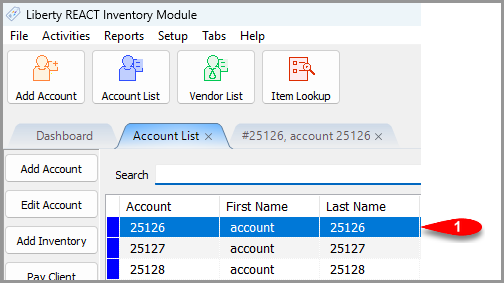 Open the consignor's account from Account List.
 - Scroll down in the account details to Digital Payout ID. Select the … button beside that field.
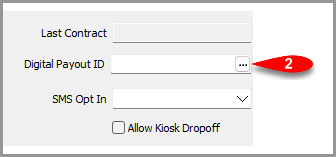 The button beside Digital Payout ID starts ResaleWallet setup.
 - When Liberty asks whether you would like to set up a ResaleWallet account for this client, select Yes and follow any further prompts. This begins the setup process without preparing or posting a payout.
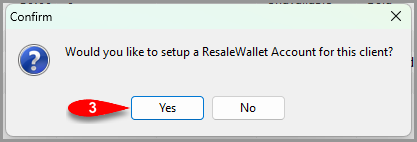 Confirm that you want to begin ResaleWallet setup for this consignor.
After The Setup Email Is Sent
Ask the consignor to check their email and complete the ResaleWallet instructions. Their bank information is entered through the secure setup pages. See Create Your ResaleWallet Account for the consignor's steps.
If the email is missing or they need a new access link, see ResaleWallet Consignor Troubleshooting. If bank details need attention, use the instructions for managing ResaleWallet from Consignor Center.
Before making a future payout, check that the consignor's Digital Payout ID and Payment Account are correct. Confirm with the consignor whether they have completed registration. Sending the setup email alone does not confirm that their bank setup is finished.
Next Article In Section
Click the following link to move to the next article in this section:
Paying Out A Single Client With ResaleWallet