How To Associate Items With Seasonal Sales
Seasonal Attributes have been released in 6.3a.
A seasonal attribute is considered a clearance attribute.
When you are having seasonal sales, this is the best use case for this type of attribute.
Create The Seasonal Attribute In Category Editor
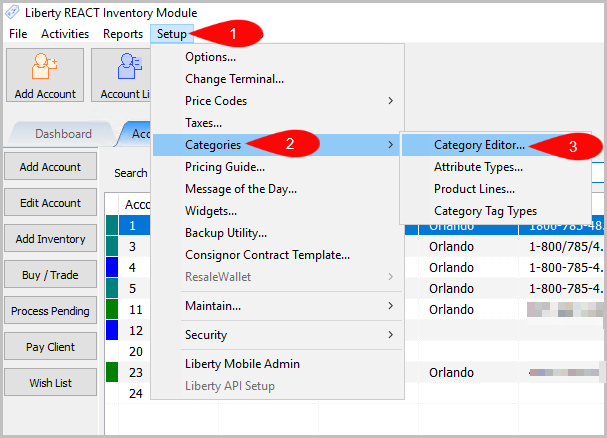
- To get to attributes we need to access Category Editor, we will need to click on Setup > Categories > Category Editor…
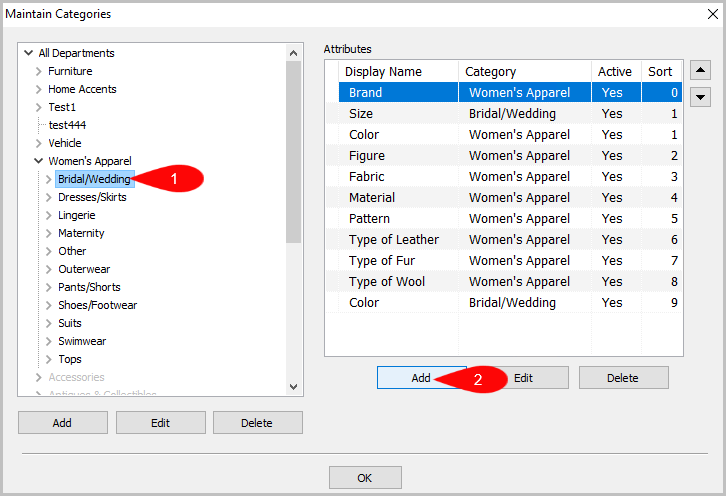
- Next, click on the Category you want to add it to and press the Add button.
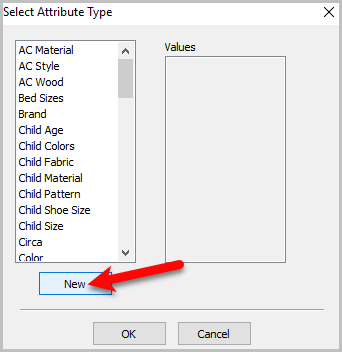
- Click on the New button.
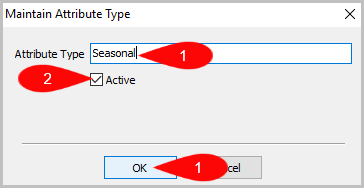
- Type in Seasonal Confirm Active checkbox is checked. Then press OK.
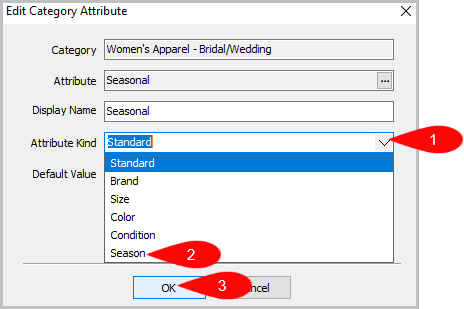
- Next the Edit Category Attribute window will pop up,
click on the drop down menu and select Season as the Attribute Kind.
- Add more specific Attribute Values in the Attribute Type: Seasonal.
For example, Winter, Spring, Summer, Fall, or Wedding.
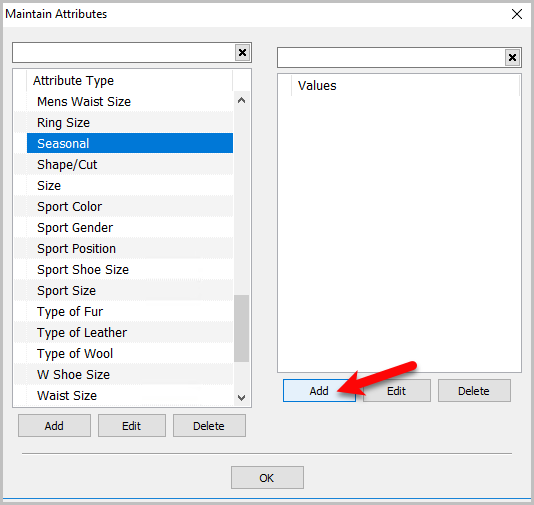
We are going to add Wedding in this case for the off season. First click on Add.
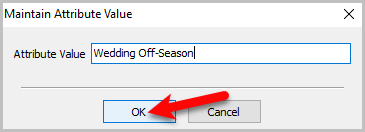
- Enter in the type of Seasonal Attribute Value you want. Then press OK.
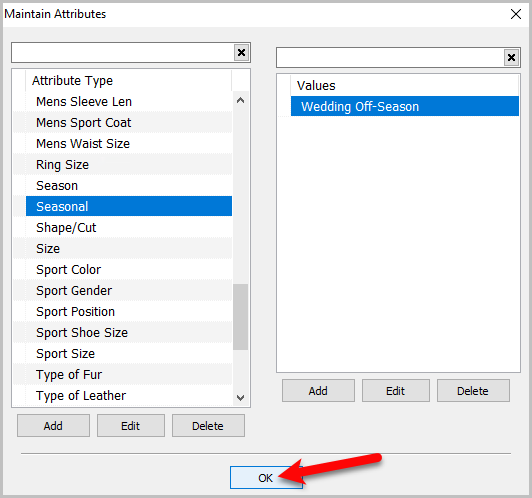
- This is how the Maintain Attributes window will look once it is added.
Once you are done press OK.


How To Add The Seasonal Attribute In Inventory
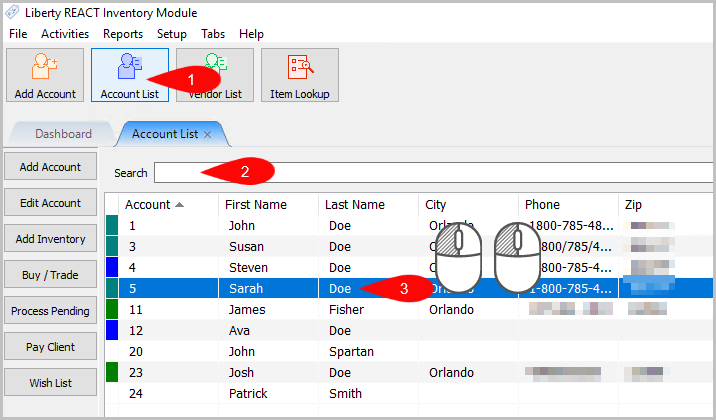
- Now, we need to add the Seasonal Attribute to an item. Open up the Account List and search for the consignor’s account, then double click it to open the account.
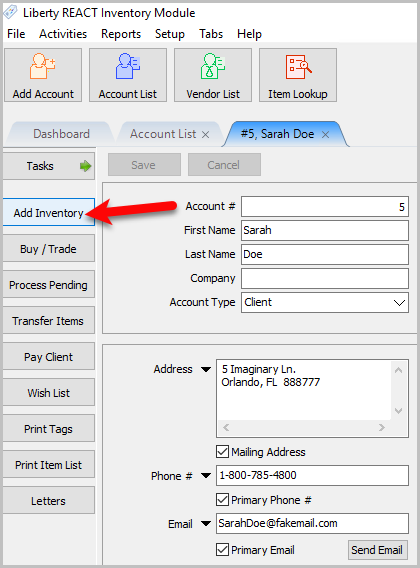
- Now, we need to Add Inventory in this account that is going to be selling Seasonal Items.
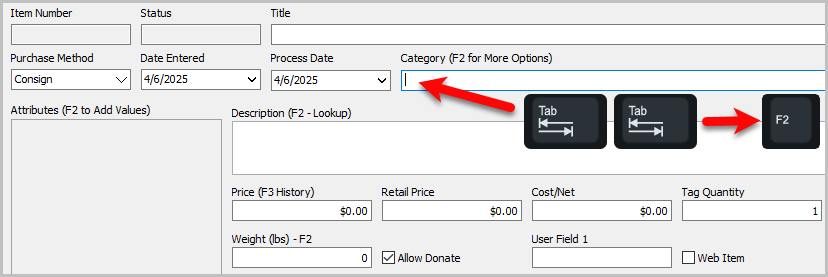
- Press Tab twice to get to the Category box. Then, press F2.
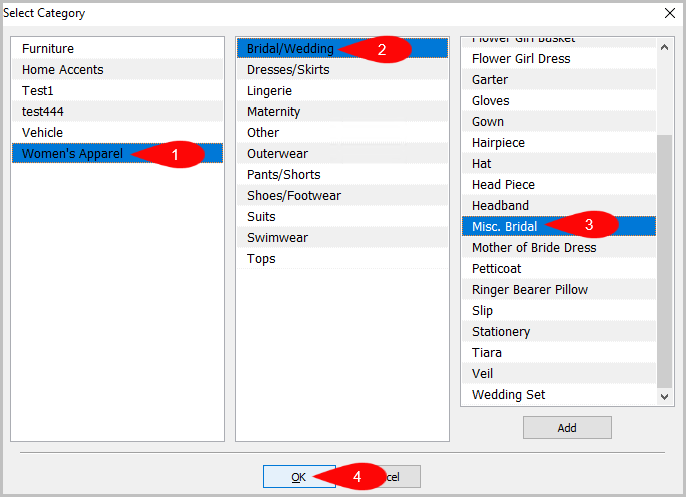
- Select your Categories associated with the Seasonal Attribute. Then, press OK.
- You should see the Seasonal Attribute appear on the left hand side.
Click on it and select the Attribute Type created earlier.
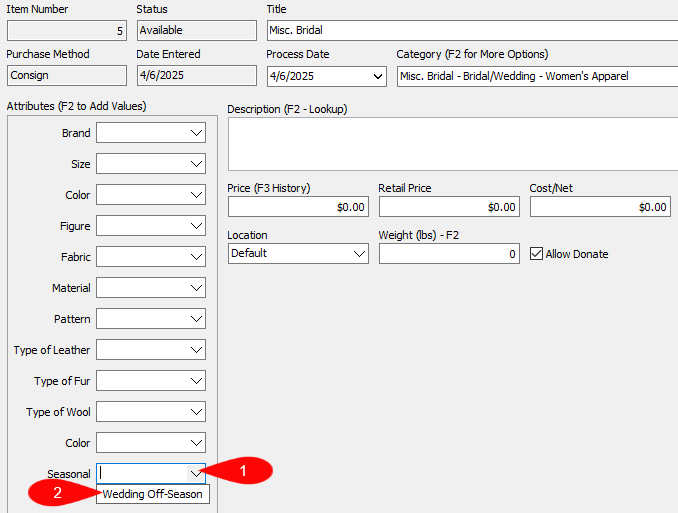
- Finish out any last details on the item.
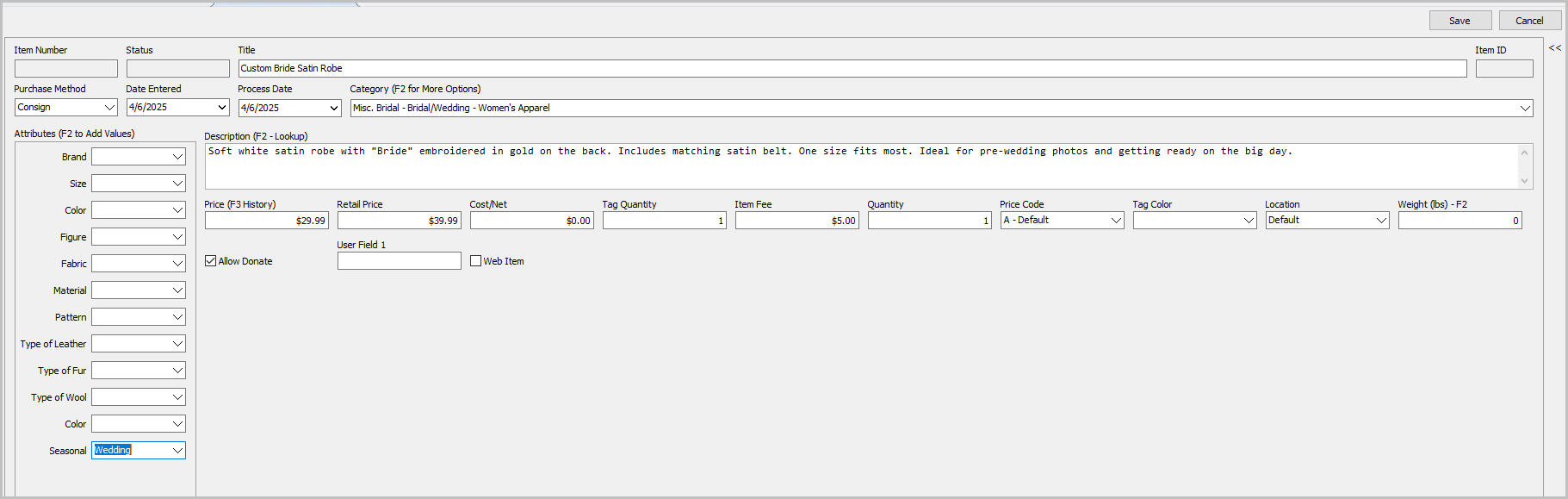
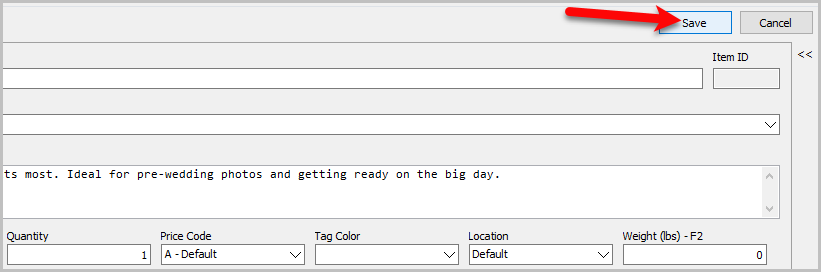
- Press Save once you are done.


Creating a Seasonal Sale in POS
- Open up the POS. Click on More.
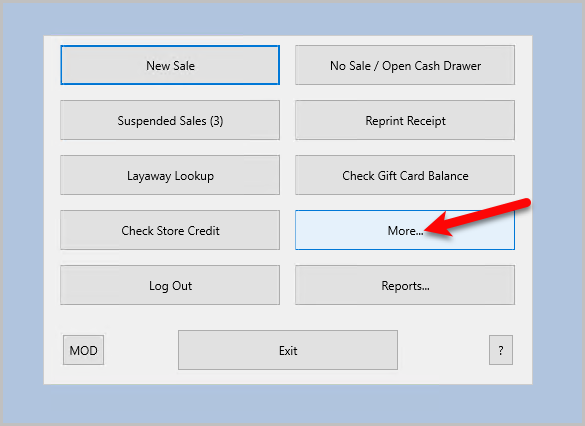
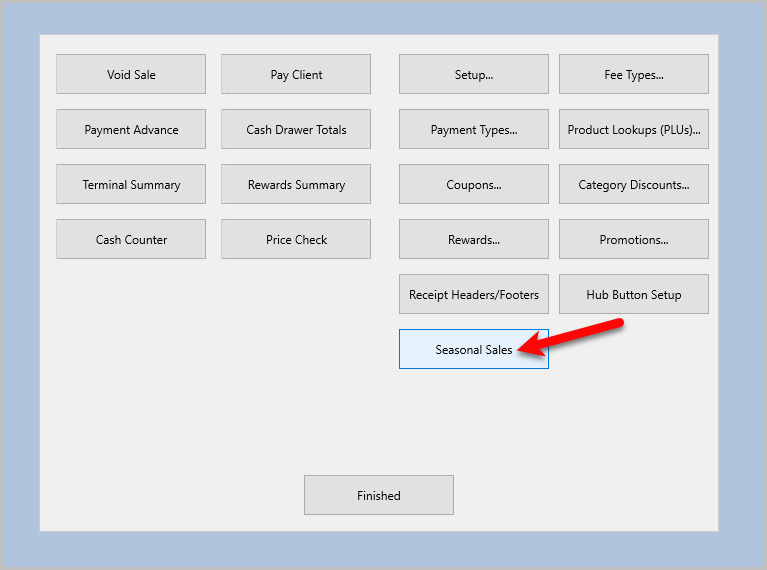
- There is now a button called Seasonal Sales. Go ahead and click on it.
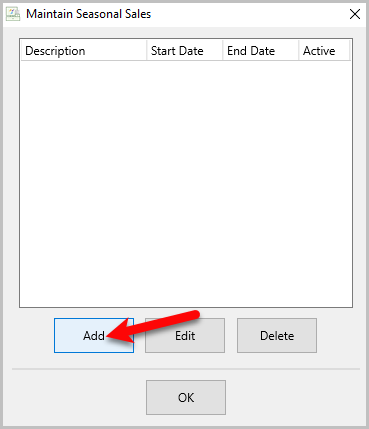
- Click on Add.
- The Maintain Seasonal Sale window will pop up.
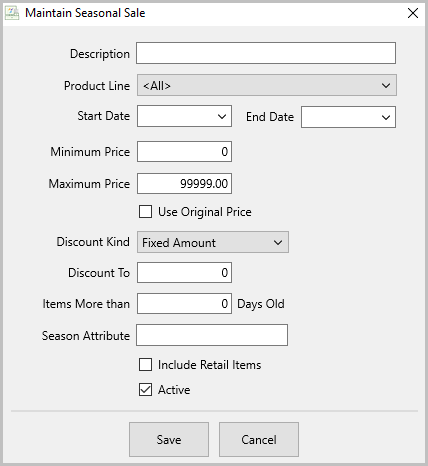
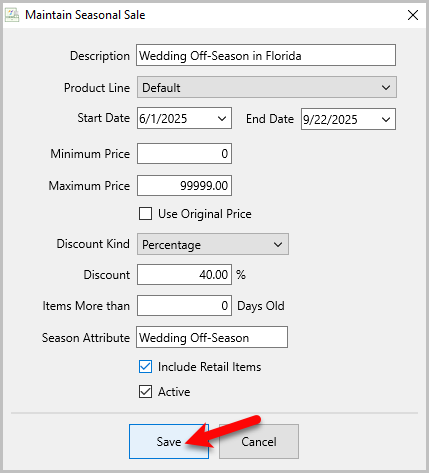
- Fill out all the details, if you need more information on what each entry means, check out Seasonal Sale Window Overview. Once you are done press Save.


Next Section Navigation Link
Click the following link to see a list of articles for the next section:
Credit Cards
Related Topics
How To Associate Items With Seasonal Sales Seasonal Sale Window Overview How To Create And Use A Coupon In The POS How To Process A POS Transaction Assigning Terminal IDs (Network Only) Balance Cash Drawer End of Day Procedure How to Enter Sales Faster Handling Item Fees in the POS Point of Sale Computer Equipment Point of Sale Overview