Add a Fee to a Sale
Note: Adding a fee to a sale is the same as adding a fee by itself to be sold. The steps are the same. The only difference is if an item is currently part of the sale. Adding the fee will have no affect on how the sale is processed.
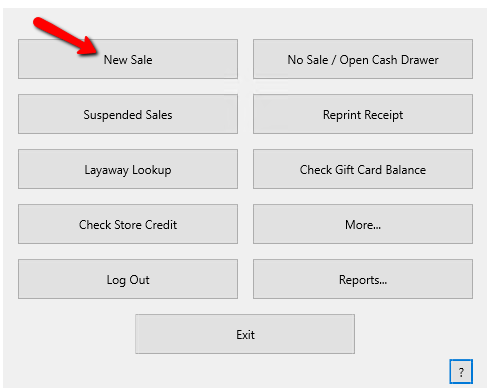
- From the POS Hub select the New Sale button.
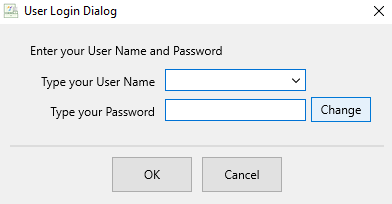
Login if Prompted.
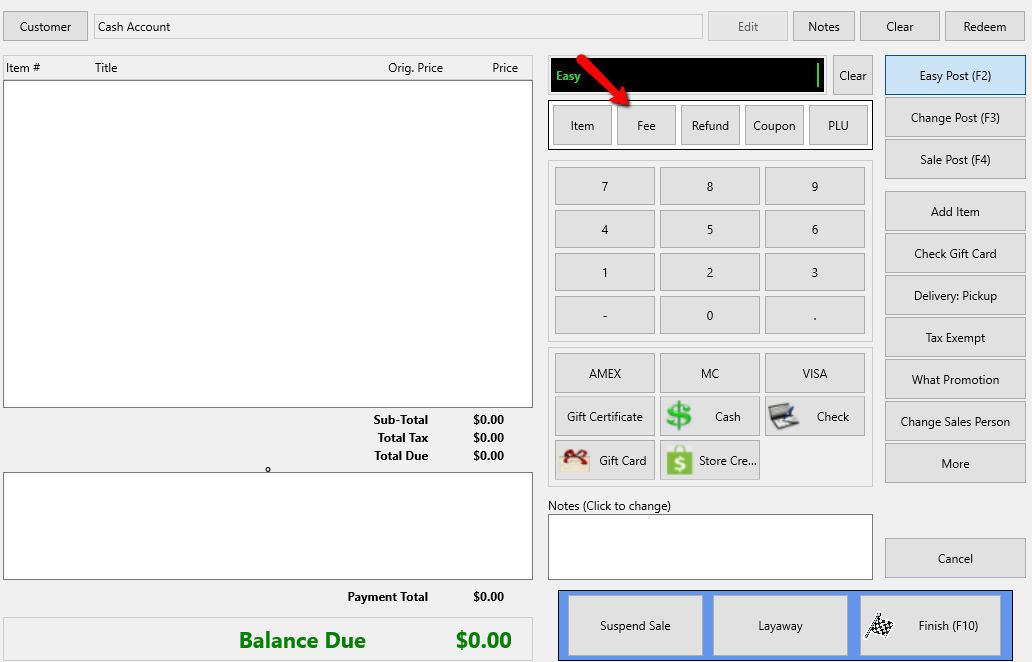
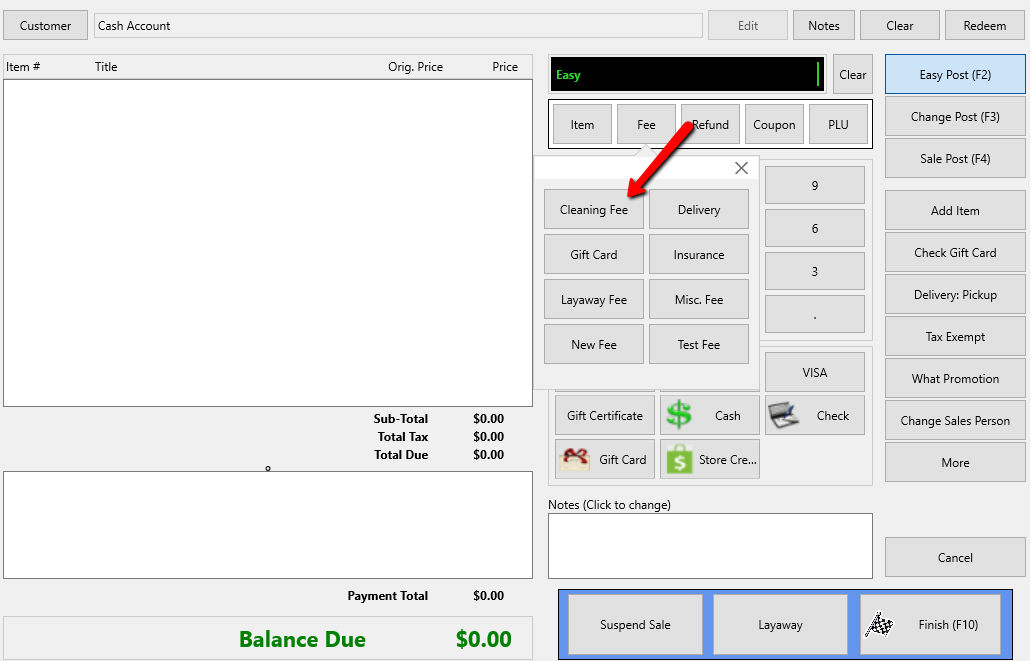
- Within the POS select the Fee button.
An additional menu will open with all the Fees listed.
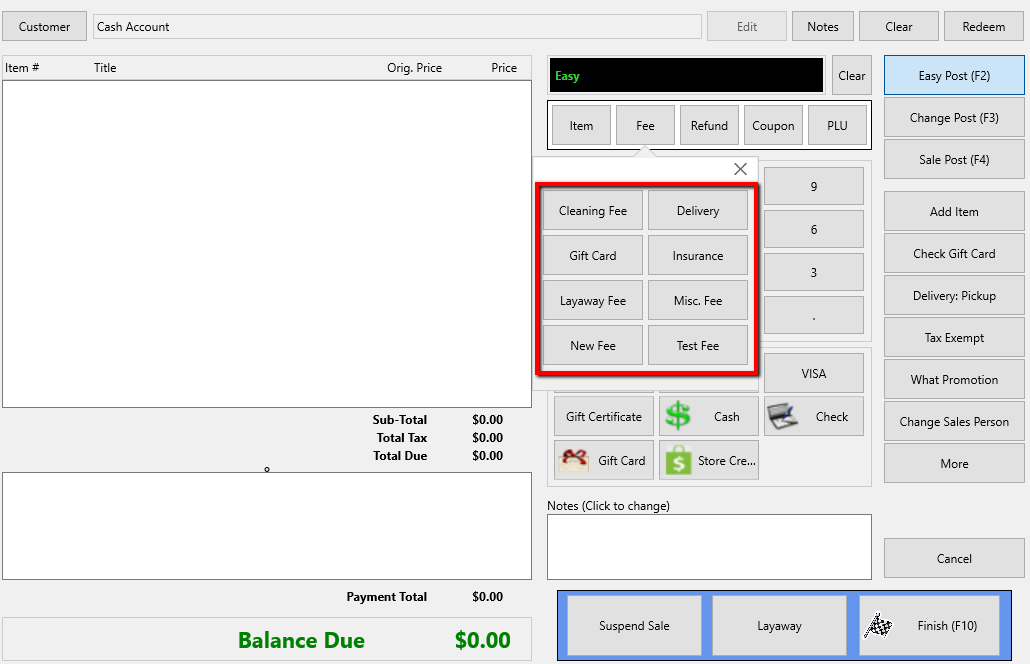
- Select the Fee button you want to use to ring up in the POS.
- Depending on the fee Amount Kind you are using, one of several things may happen.
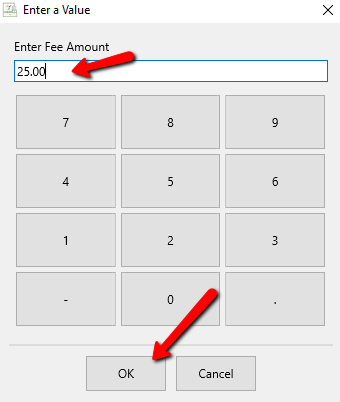
- You are using Variable Amount: Enter the value for the fee and then select the OK button at the bottom.
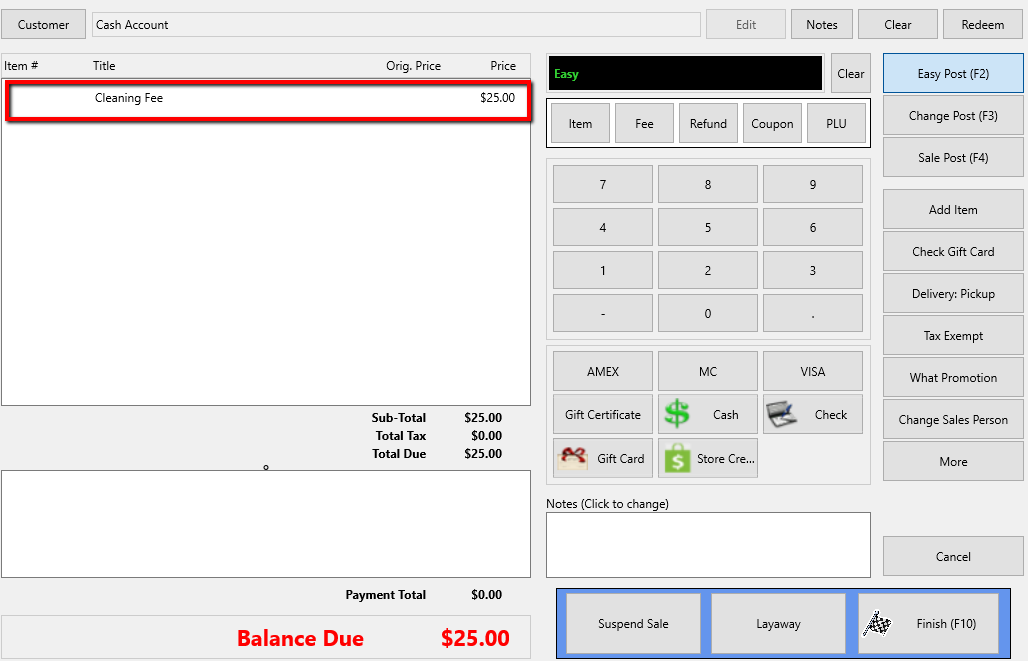
The fee will be displayed in the POS.
- You are using Flat Amount: You set a static fee so you will not be prompted to input how much you want to charge.
Instead, the pre-set fee will simply be charged.
- You are using Multi-quantity flat Amount: You will be prompted to specify a quantity of which will be multiplied by the pre-set amount you set for this fee type.
Click the OK button after typing in your quantity.
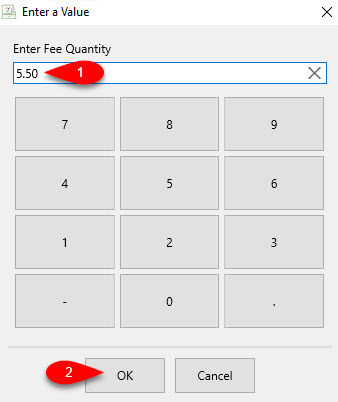
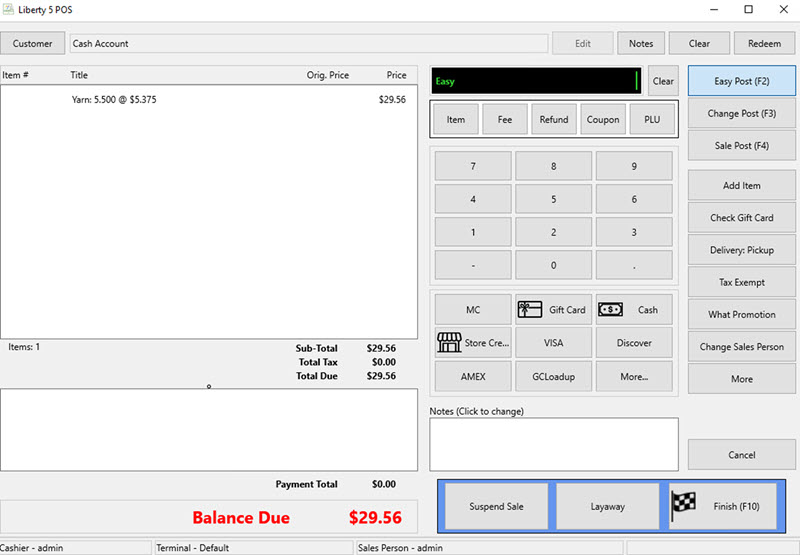
In the following example, we are purchasing 5.5 yards of yarn. Our amount per yard of yarn is $5.375
We ended up charging $29.56 because 5.5 x 5.375 = 29.56 rounded.
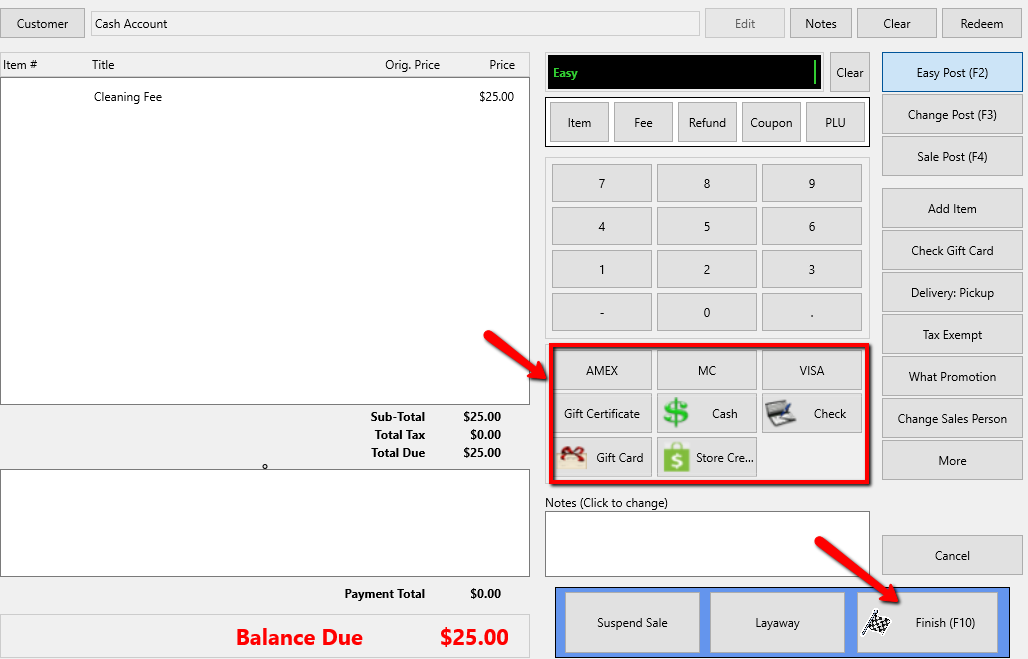
- Select the Payment Type and then the Finish button at the bottom.


Next Article In Section
Click the following link to move to the next article in this section:
Sell an Item as Tax Exempt