Changing the Selling Price of an Item
Use Change Post to change the price of an item by a specific dollar amount. For instance, an item with the price of $10.00 on the price tag is crossed out and replaced with $7.00.
Change Post may also be used to change an item’s selling price by a percentage (e.g. 20% off during a sale), however, it is more convenient to use Sale Post instead. For more information on Sale Post please see the section entitled Sell an Item at a Percentage Discount.
To Post A Sale Requiring A Change In The Selling Price
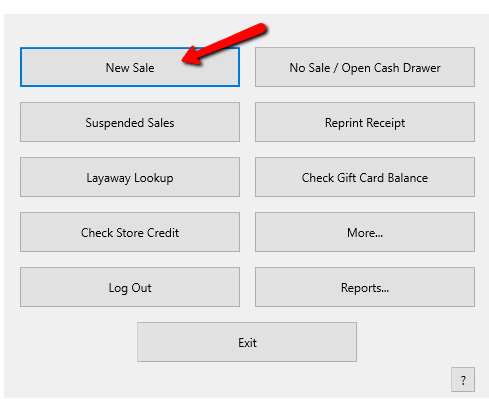
- From the POS Hub select the New Sale button.
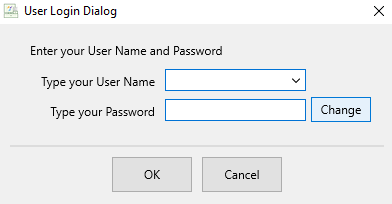
- Login if prompted.
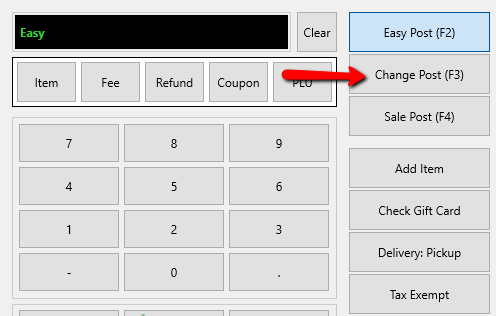
- Press the F3 Key, or Click on the Change(F3) button.
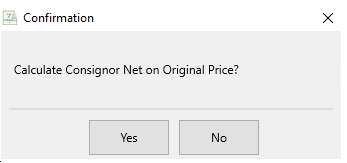
Scan an item or enter in the items account-item number, the Calculate Consignor Net on Original Price dialog box will display. Select Yes or No and then scan in or type in the item.
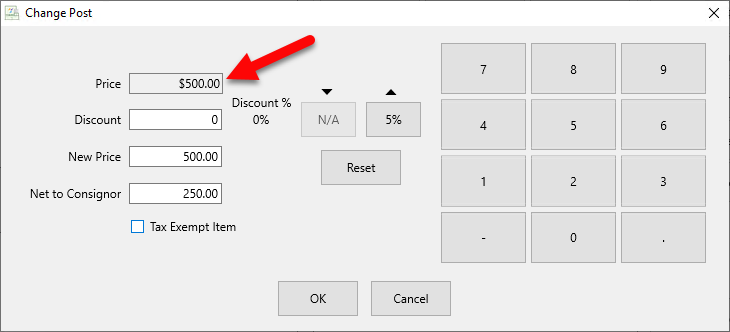
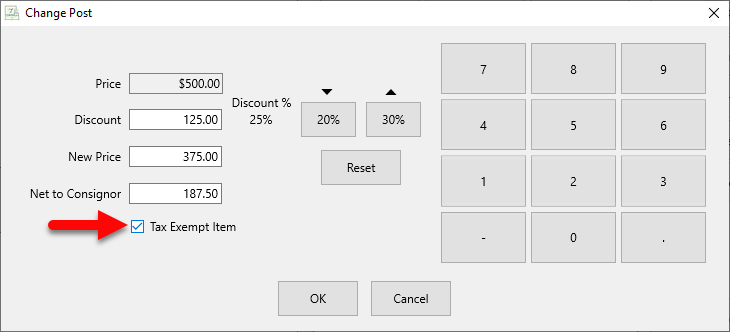
Next the Change Post window will open.- Price : This the original price of the item.
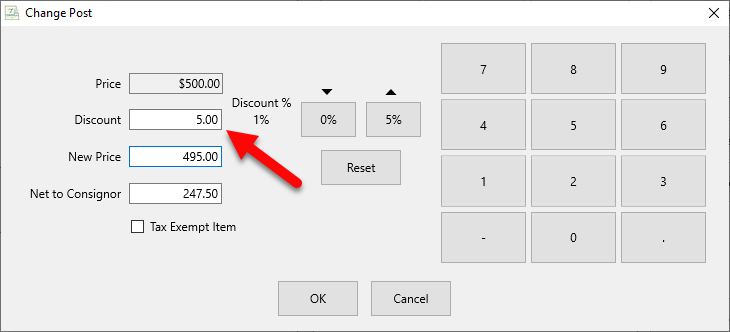
- Discount : In the discount field, you can type the dollar amount you wish to take off on the item.
To the right of the price are 3 quick access buttons and the current amount percentage wise that is being taken off the original price.
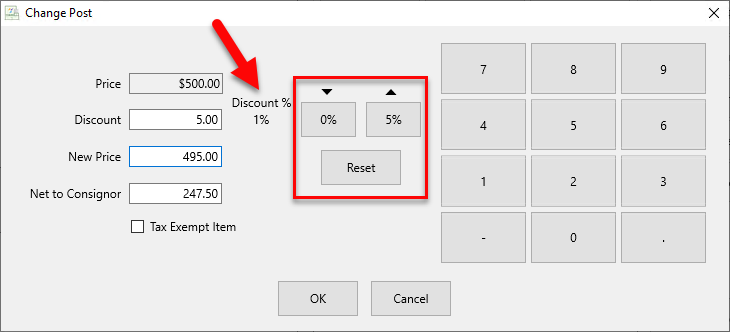
The percentage boxes are there for easy discounts.
Example: In the image below you will see that the current discount $50.00 off of the current price is 10%. I could click on the 5% box to drop the discount by 5% or I can increase the discount by 5% and go to 15%.
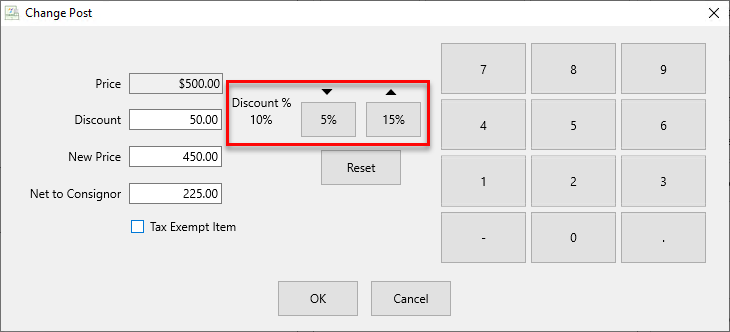
Notice that after I decide to increase the discount by 5% and select the 15% box, all the boxes increase by 5%, the current discount increases by 5%, the discount dollar amount and the final price change proportionately.
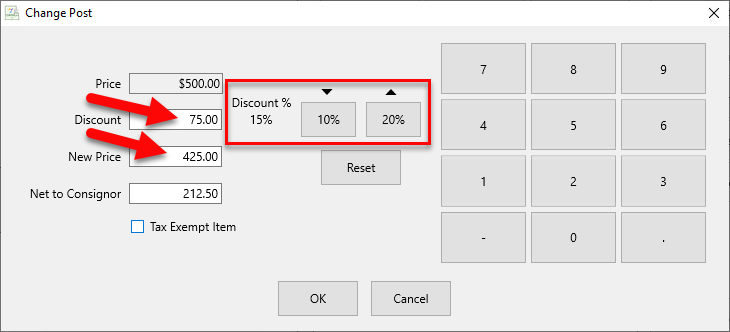
- New Price : This is the new price of the item once the discount is applied.
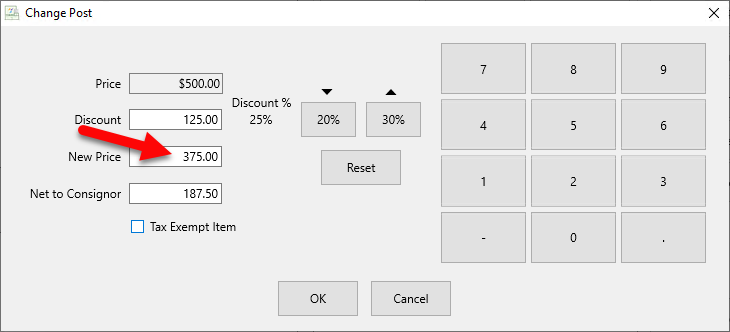
- Net To Consignor : This is the amount that will be paid to the consigner of the item.
If Calculate Net Based on Original Price is turned on, then the Net to consignor will never change, and the store will paying the whole discount.
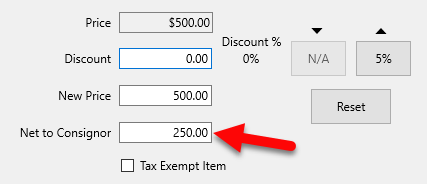
If Calculate Net Based On Original Price is turned off, then the consignor net will change based on the discount, and the discount will be paid by the store and the consignor.
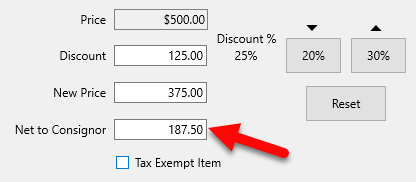
See Setting Up POS Defaults for more information. - Tax Exempt Item (Check Box) : Select the Tax Exempt Item Check box if this is a tax Exempt Item.
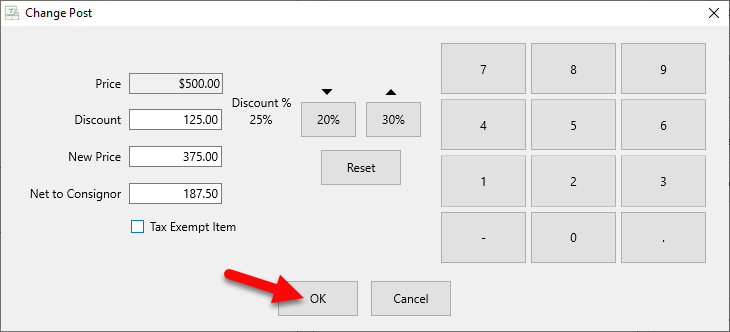
- Select the OK button when done.
The item will appear in the POS showing the Original Price, and the new Discounted Price.
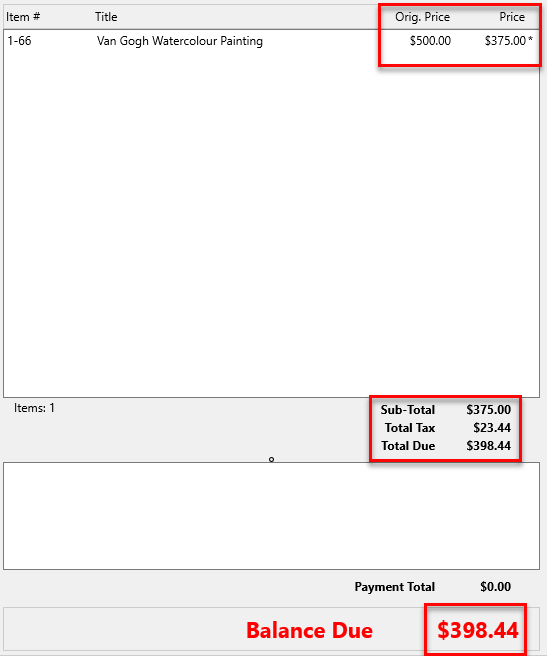
- Process the sales as normal.


Next Article In Section
Click the following link to move to the next article in this section:
Sell an Item at a Percentage Discount