Remote Support
Enter Your PIN
Enter the nine digit PIN from your Resaleworld support technician, then select Submit.
Use this page on the Windows computer that needs assistance. You can enter your PIN here in Liberty Help instead of visiting startcontrol.com separately. After selecting Submit, follow the instructions to download the remote support software through StartControl.
If you have not received a PIN, contact Resaleworld Support first. Keep the remote support applet open while your technician connects.
Note: Using a Mac? Follow Remote Support For Mac instead. Installing Google Chrome before your support call can save time.
Download And Open The Support Software
- Open your browser's Downloads list and select the remote support file you just downloaded. Your technician can confirm the file name before you run it.
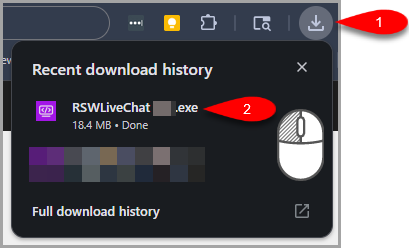
- If a download reputation warning appears, follow the guidance below before opening the file.
- Open the support software and keep its window open while your technician connects. If a Support Request number or queue position appears, leave that window open.
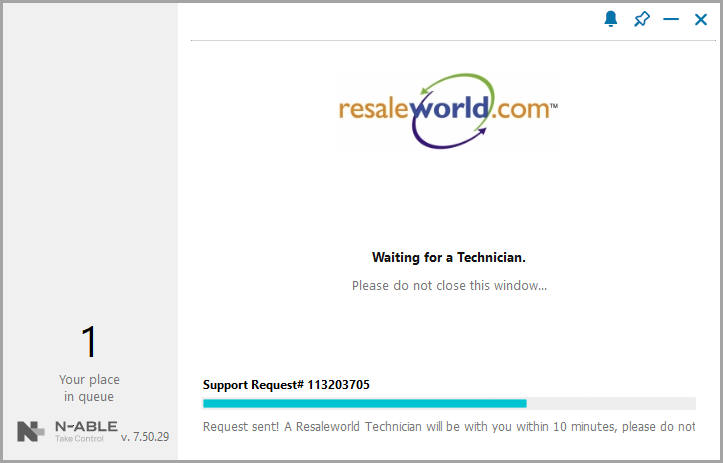
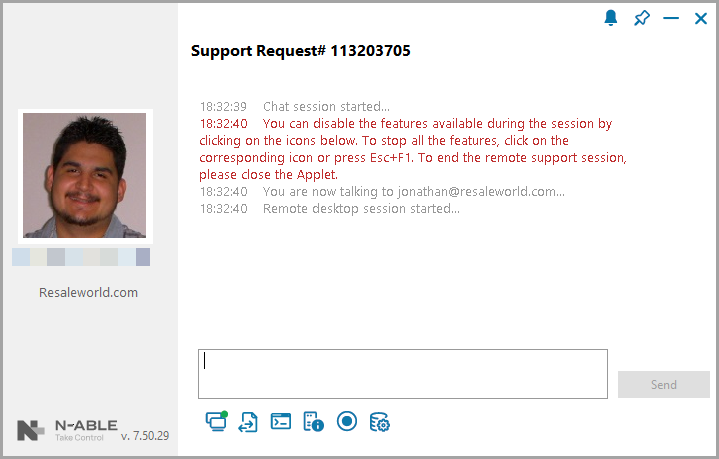
- Follow your technician's instructions. If the applet includes a chat box, enter your message and select Send. Close the Applet window when the support session is finished.


If Windows Or Your Browser Shows A Warning
Remote support software lets a technician view and assist with your computer. Microsoft Defender SmartScreen or your browser may display a warning when downloading or opening a file that does not yet have an established download reputation.
If you are working with Resaleworld Support and your technician confirms that this is the expected support download:
- For a download warning, select Keep, then Keep anyway if that option appears.
- If Windows displays Windows protected your PC for the same confirmed file, select More info, then Run anyway if available.
The wording and available buttons can vary. If the warning reports malware, the file name is unexpected, or your computer blocks the file without an option to continue, ask your technician before proceeding. Leave your security protections enabled.
Getting Ready On A Mac
Mac assistance uses Chrome Remote Desktop when directed by your technician. Download Google Chrome ahead of time and use the Remote Support For Mac guide to prepare for temporary access.