Assign an In-Store Reward Plan to an Existing Customer
- The Account Details screen will display. Select the Purchases tab.

The Purchases tab will open. Information about the In Store Rewards Plan is displayed to the right.
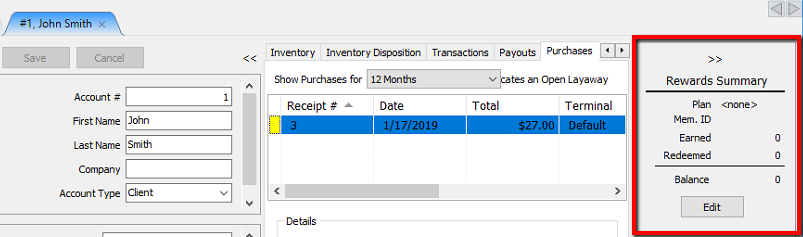
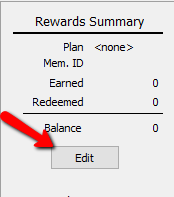
- To add a customer to an In Store Rewards Plan, click the Edit button.
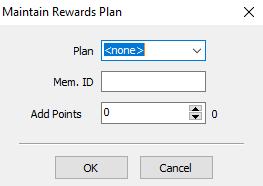
The Maintain Rewards Plan dialog box will open.
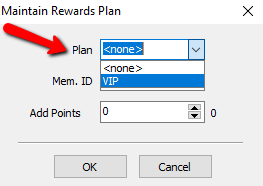
- Click the Plan dropdown menu and select a plan to add to the account. See Rewards Plan Setup for details on how to set up an In Store Rewards Plan.
- Enter the Member ID number
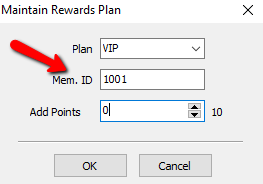
Note: The Rewards Plan numbers can start with any number. It is up to the store to come up with their own numbering system. Some suggestions might be to use the last digits of a Social Security number or the account number as the rewards number.
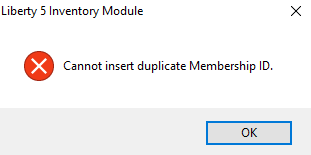
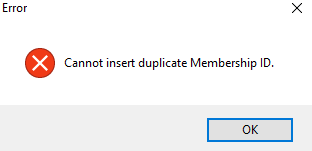
If you try to use a number that has been assigned to another account, you will get the following error.
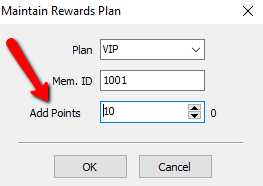
- If points need to be added or removed, use the up and down arrows or type in the amount you wish to add or subtract.
- Click the OK button when done.
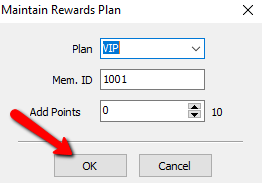


You will see the Rewards Plan information if successful.

Adding A Customer To A Rewards Plan At The Point Of Sale
- From the Point Of Sale select the Customer button.

- Search for the account and double click on it.
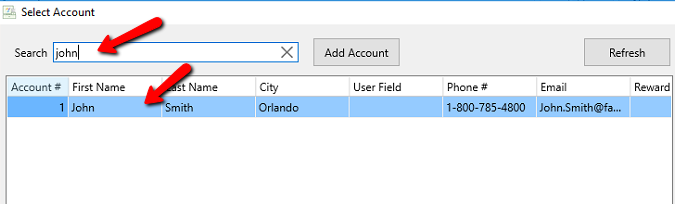
This will add the customer to the Point Of Sale Transaction.

- Select the Edit button to add the customer to a Rewards Plan.

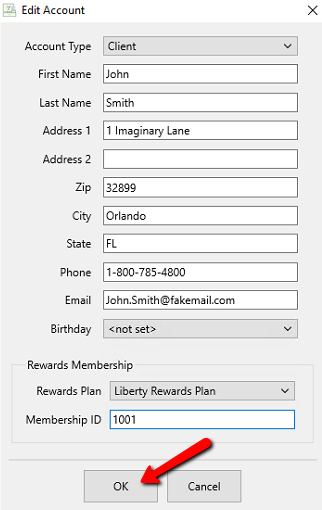
The Point Of Sale Edit Account details dialog box will display.
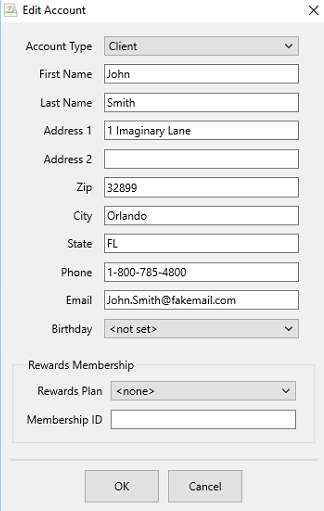
- Select the Rewards Plan dropdown menu and select the rewards plan you wish to add the customer to.
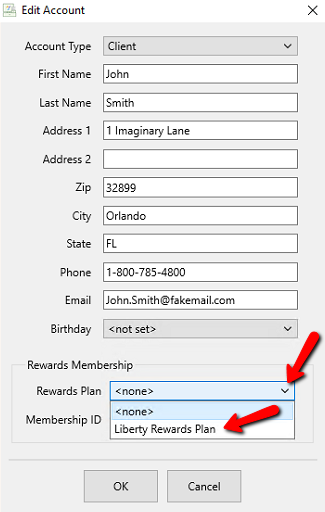
- Enter the Member ID number
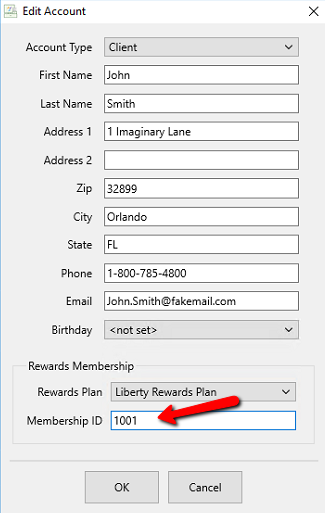
Note: The Rewards Plan numbers can start with any number. It is up to the store to come up with their own numbering system. Some suggestions might be to use the last digits of a Social Security number or the account number as the rewards number.
If you try to use a number that has been assigned to another account, you will get the following error.
- Select the OK button when you are done.


You will see a Point Counter tell you how many points the customer has once completed.

Next Article In Section
Click the following link to move to the next article in this section:
Check a User’s In-Store Reward Plan Points