Table of Contents
Selecting Promotions
The “What Promotion” Button is a way of tying a sale to a specific promotion, such as radio ad or a mass mailing. This is a great way to determine which promotions are working for bringing in business and give you an idea where to spend more money for promoting.
Selecting A Promotion
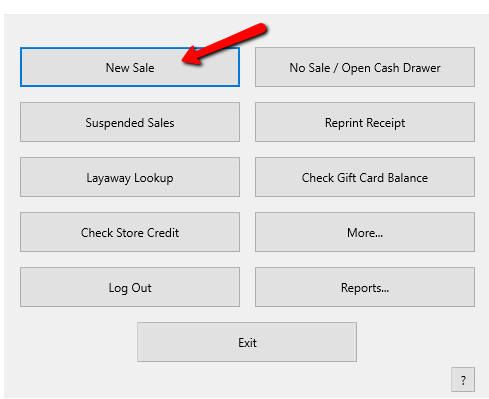
- From the POS Hub select the New Sale button.
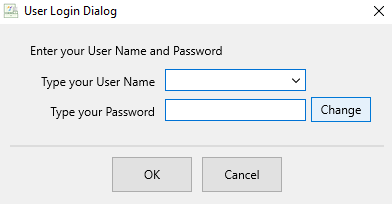
Login if prompted.
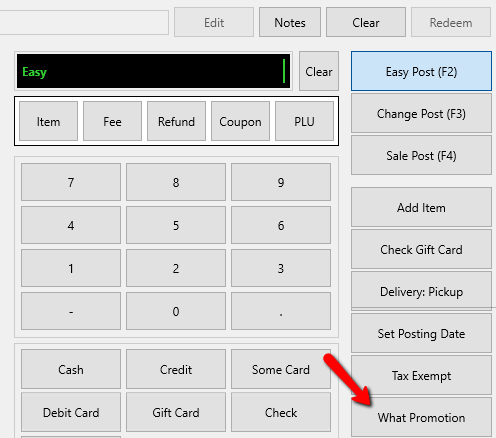
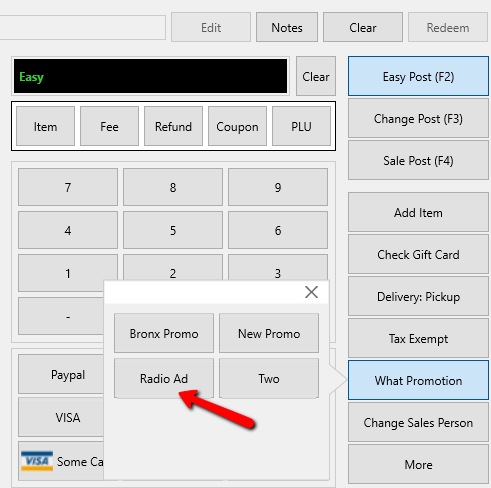
- When the POS opens, select the What Promotion button.
An additional menu of available promotions will appear.
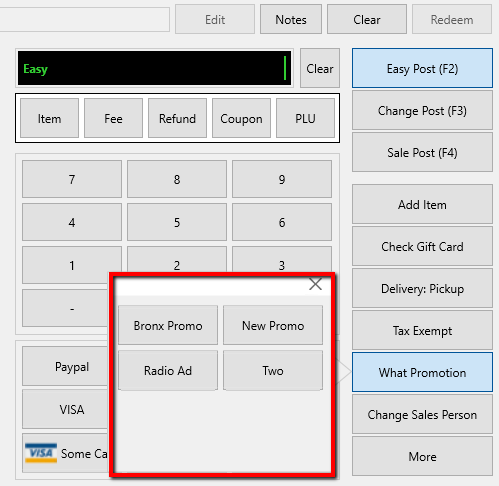
- Ask the customer which promotion brought them to the store, then select that promotion. Selecting one of these options ties the sale to the selected promotion.


The Promotion Summary Report can be run to show a breakdown of sales by promotion.
Next Article In Section
Click the following link to move to the next article in this section:
Sell An Item With Additional Quantity