Table of Contents
Remove an Item From a Sale
Use this procedure to remove an item from a sale. You must remove the item before Finishing the sale.
How To Remove An Item Before Posting A Sale
- If you scan an undesired item, select the item to be removed.
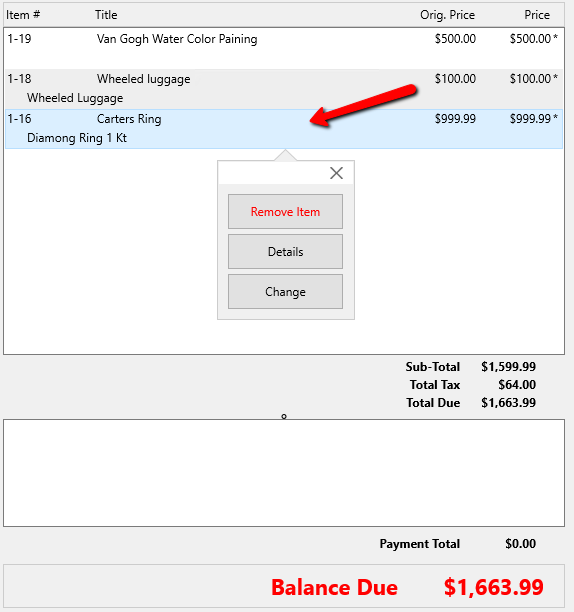
Once you highlight the item, a drop down menu will appear with three options.
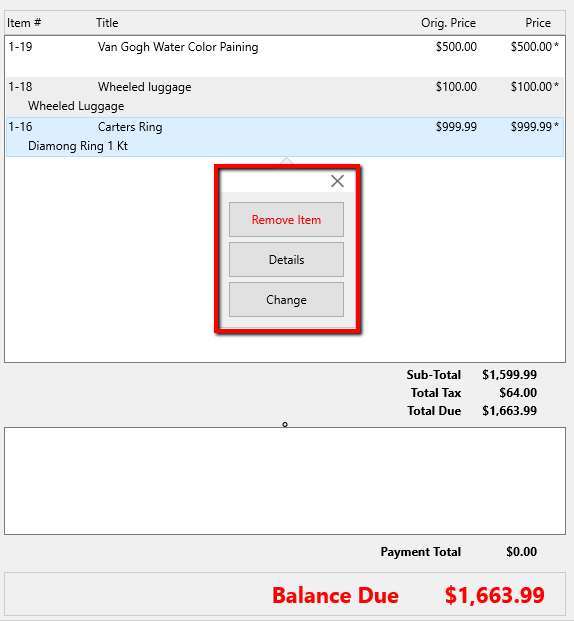
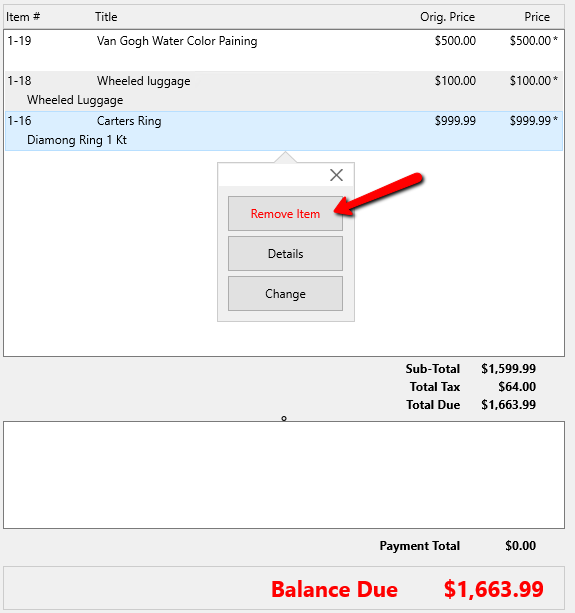
- Click on the Remove Item option.
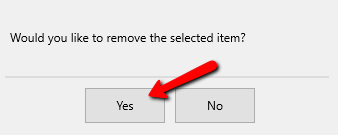
- Confirm that the item should be remove by selecting Yes.


You should notice the item has been removed from the sale.

Next Article In Section
Click the following link to move to the next article in this section:
Selecting Promotions