Table of Contents
Payout Refund
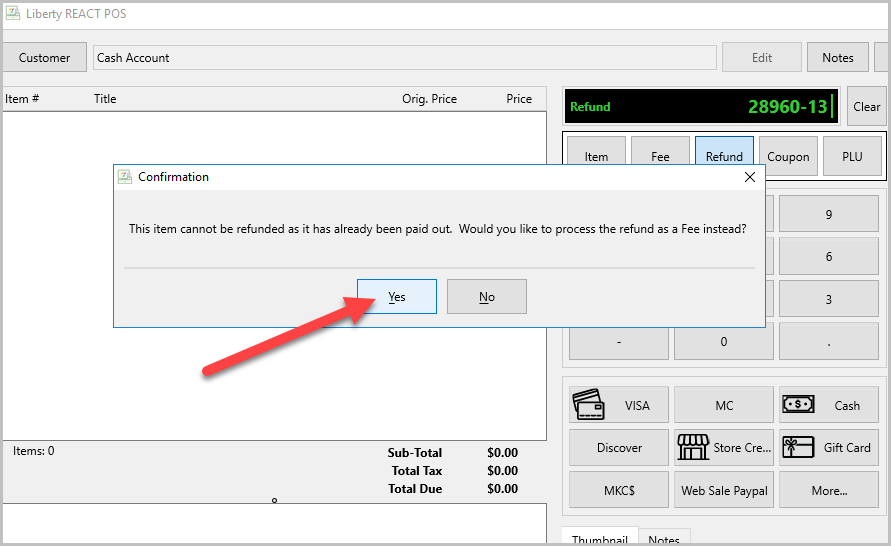
When refunding items that are already paid-out, you run into this error when trying to refund without the Refund Paid Items with Fee Type disabled. It is disabled by default

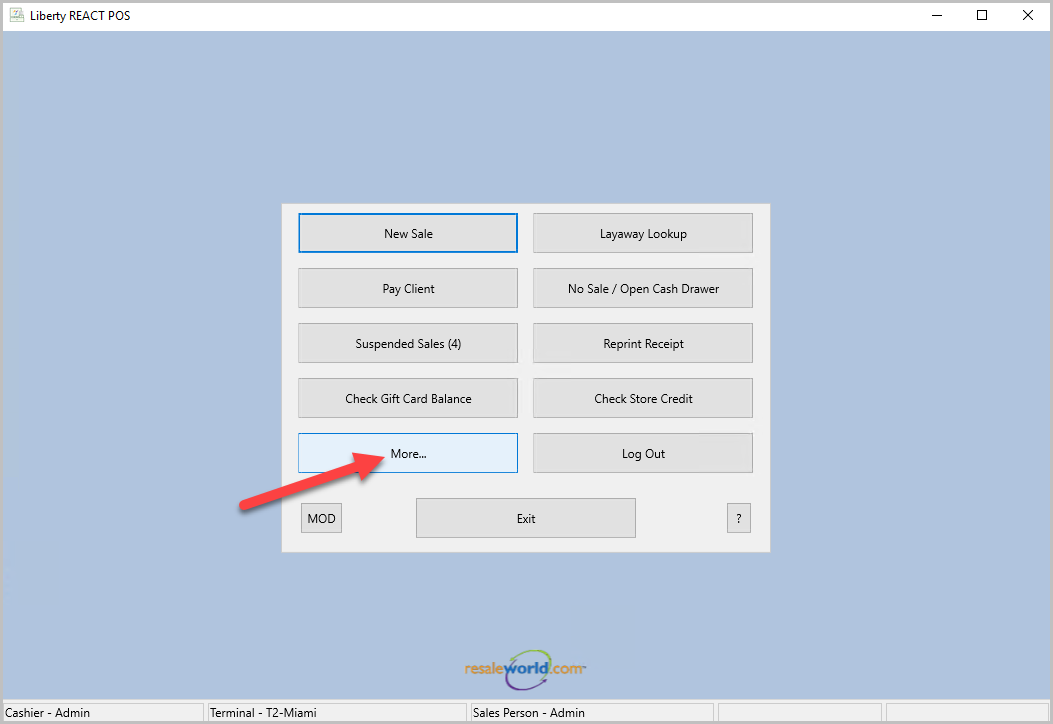
Go To Point Of Sale Setup
- Click on More…
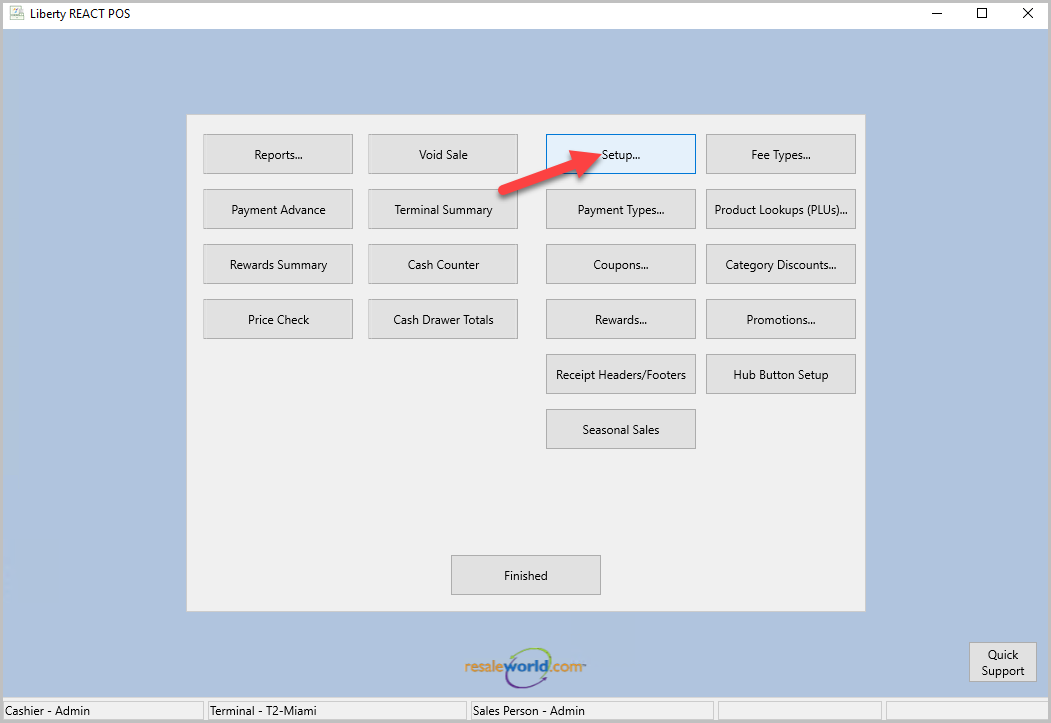
- Then click on Setup…
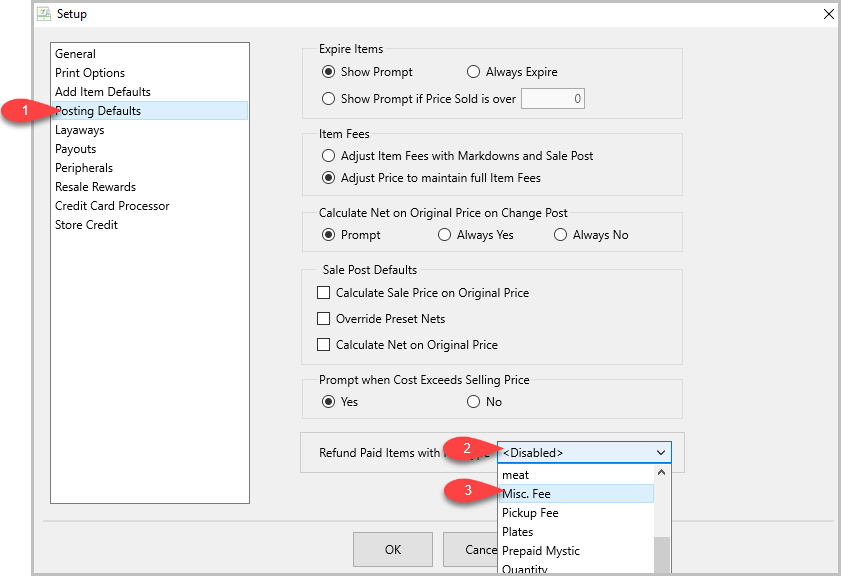
- Login with your username and password, then go to Posting Defaults,
click on the drop down next to Refund Paid Items with Fee Type
and select the fee type you want to use.
- Now when you refund an item you will get this confirmation instead and you will press Yes
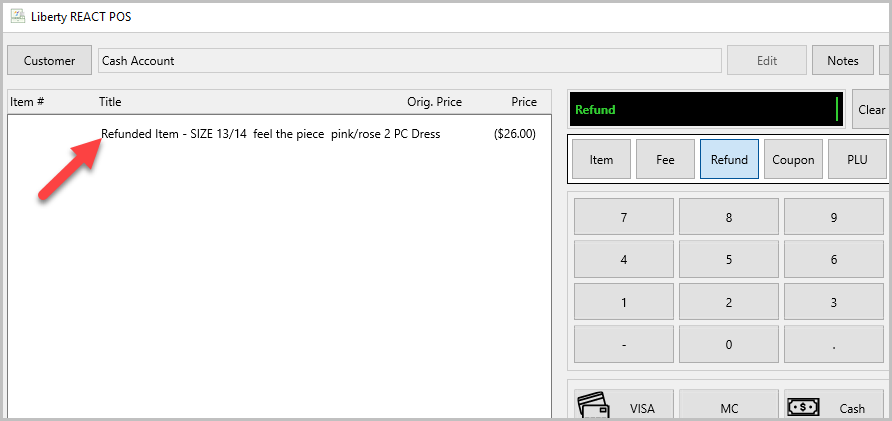
- Now the paid-out item shows as a Refunded Item


Next Article In Section
Click the following link to move to the next article in this section:
Add a Fee to a Sale