
Invoice Settings
Controls the default settings for order invoices.
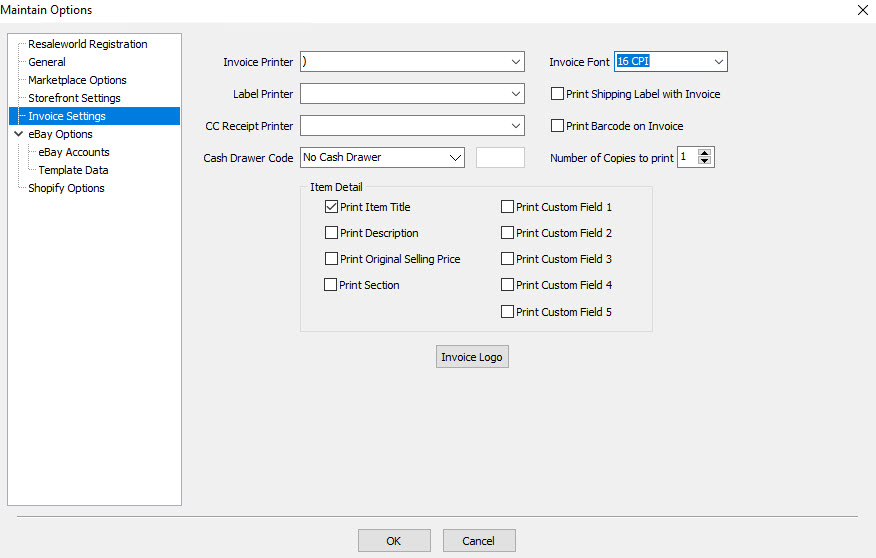
●Invoice Settings
○Invoice Printer - sets a printer specifically for invoices for Listing Manager
○Invoice Font - Changes the font used on invoices
○Label Printer - sets a printer specifically for shipping labels for Listing Manager
○Print Shipping Label with Invoice - Automatically print a shipping label when printing an invoice
○Print Barcode on Invoice - Select this option to print a barcode on the invoice. This will allow you to scan the
barcode and find a sale based on the receipt number in Listing Manager.
○CC Receipt Printer - sets a printer specifically for Credit Card Receipts for Listing Manager
○Cash Drawer Code - Select the correct Cash Drawer Code from the drop-down list. Be default this is set to No Cash Drawer and this will be sufficient for most users. For older printers, please consult your printer’s documentation.
Note: If you Cash Drawer requires a numerical code, that will be placed in the box to the right of the Coed Type you select.
○Number of Copies to print - Defines the default quantity of document sets to print with every print job initiation
○Item Detail
■Print Item Title - When checked, the Item Title will be printed on the receipt.
■Print Description - When checked, the Item's Description will appear on the receipt.
■Print Original Selling Price - When checked prints the item's Original Selling Price on the receipt.
■Print Section - When checked prints the item's Store Section on the receipt.
■Print Custom Field - When checked prints the item's Custom Field on the receipt.
○Invoice Logo - This option will allow you to view the current logo, clear the logo, or change to a different one.