Group Category Change
Follow these steps when changing a large amount of items from one category to another.
WARNING! This is a powerful routine, so start by performing a backup in case a mistake is made.
1.Select Activities > Inventory > Change Item Details. 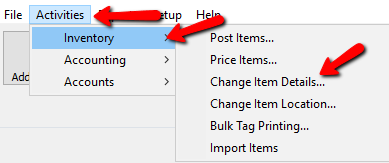
The dialog will display as shown below.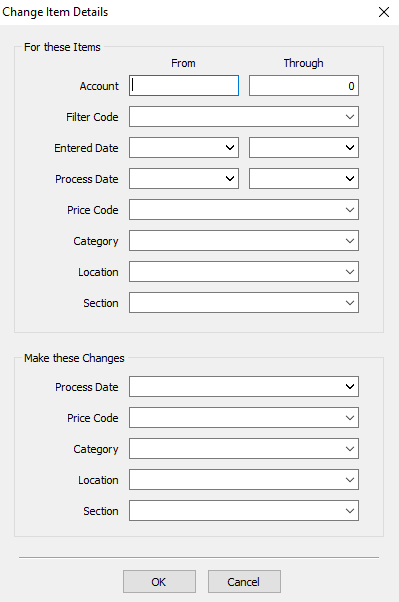
Bulk Update Fields Upper Section (For These Items)
Use this section to define the items you want to update.
●Account : Define the account range here. If you wish to include a single account then add that account number in both fields. If you wish to get all the accounts then enter 1 for the first account, and a number greater than the highwest account number you have. For example 9999999.
●Filter Code : If you are assigning accounts Filter Codes to help Identify them for reports purposes or something else, you can search for accounts with only that filter code applied to it.
●Date Entered : If you need to update accounts with a certain Date Entered, fill in these dates. If you want items only on a specific date, then enter the same date for the From and Through dates.
●Process Date : If you need to update accounts with a certain Process Date, fill in these dates. If you want items only on a specific date, then enter the same date for the From and Through dates.
●Price Code : This filter will select only items in the specified price code.
●Category : This filter will select only the items in the specified category.
●Location: This filter will select items only in a specified location.
●Section : This filter will select items only in a specific Section of the store.
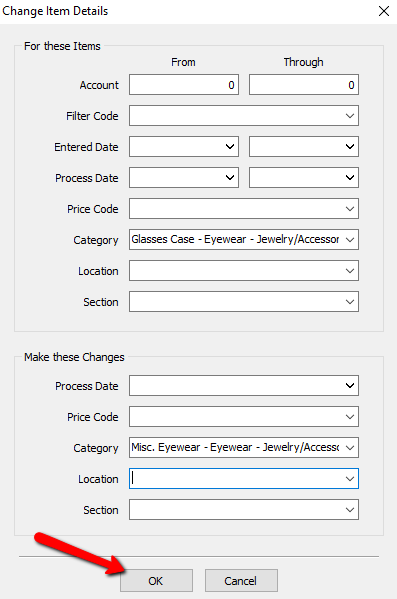
2.In the upper section use the necessary criteria to select the items that need to be changed.
Note: You WILL NEED to be careful to select what specific category you are switching FROM. If a switching from category is not selected, then ALL items will be switched to the newly selected category.
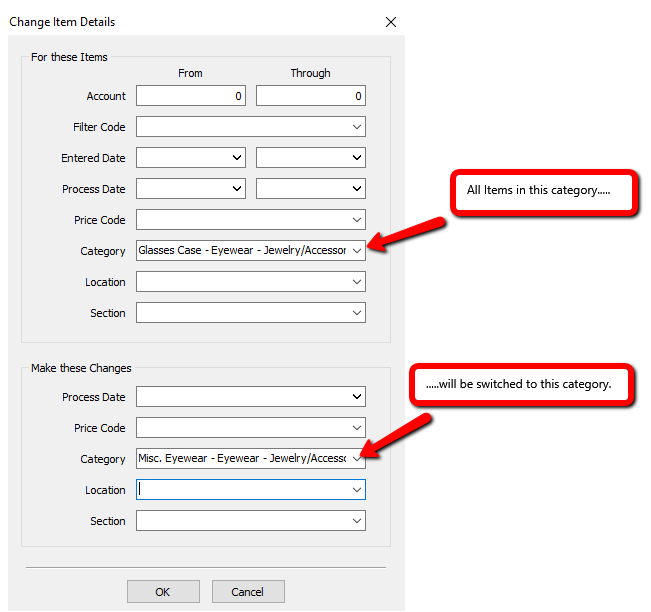
3.Select the OK button when done.