Table of Contents
Add and Manage Your Banking Details
Next, tell ResaleWallet where to send your money. You enter your routing and account numbers directly; there is no bank login step.
- Give the account a nickname, for example Checking.
- Choose the account type, checking or savings.
- Enter your bank routing number.
- Enter your account number.
- Click Submit.
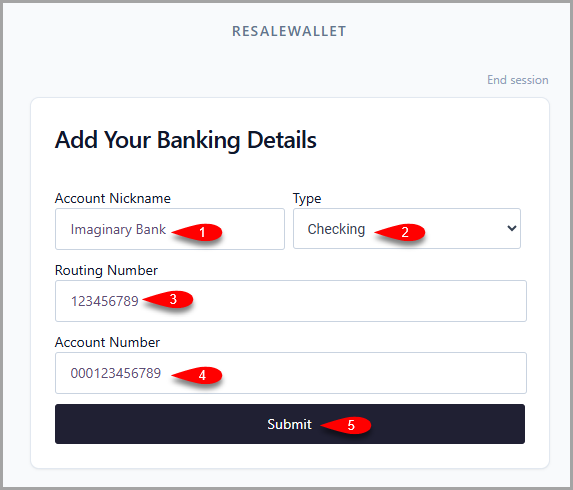 Add Your Banking Details form: enter an account nickname (1), choose checking or savings (2), enter the routing number (3), enter the account number (4), then click Submit (5).
 - When the account is accepted, you see a success message.
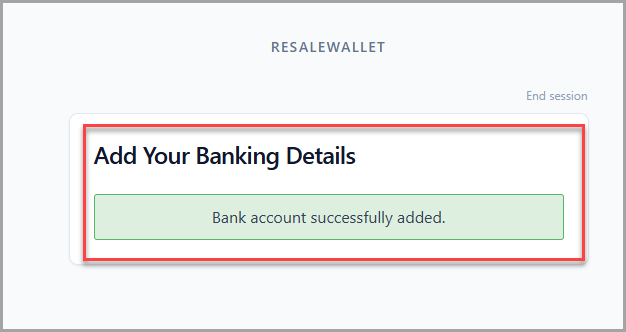 Success message confirming that the bank account was added.
Once your account is verified, your wallet shows that it is ready to receive payments.
- Each bank you add appears as a card showing its nickname and bank name.
- Your default account has a green border and a Default badge. Payouts go to the default account.
- To use a different account, click Set as default on that card.
- To add another bank, click + Add another account and repeat the banking steps.
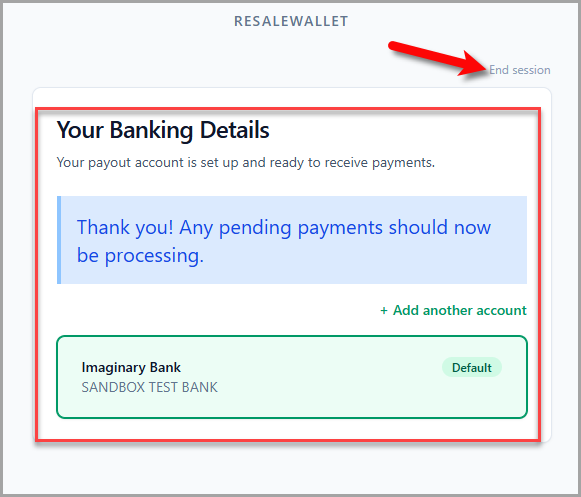 Your Banking Details page. The wallet confirms pending payments should now process, shows the default bank account, and includes End session at the top right.
Next Article In Section
Click the following link to move to the next article in this section:
How You Get Paid