Table of Contents
Process a Card Not Present Payment with ResalePay
Use this procedure to manually enter a credit card payment on the payment terminal when the card is not present. These instructions apply to the ResalePay integration and the terminal workflow shown below, not every credit card processor or device.
Before You Begin
Warning: Resaleworld recommends leaving Allow Card Not Present Transactions turned off. Manual card entry exposes your store to fraudulent cards and a greater risk of chargebacks. The store owner or authorized manager must decide whether to enable this feature and make that selection. Resaleworld Support will not enable it for you.
Your ResalePay connection and payment terminal must already be configured and working. Do not change the merchant credentials or processor selection as part of this procedure. If your terminal or screen does not match the documented workflow, contact Support before continuing.
Allow Card Not Present Transactions
If the store has already enabled this setting, continue to Start the Sale and Enter the Payment below.
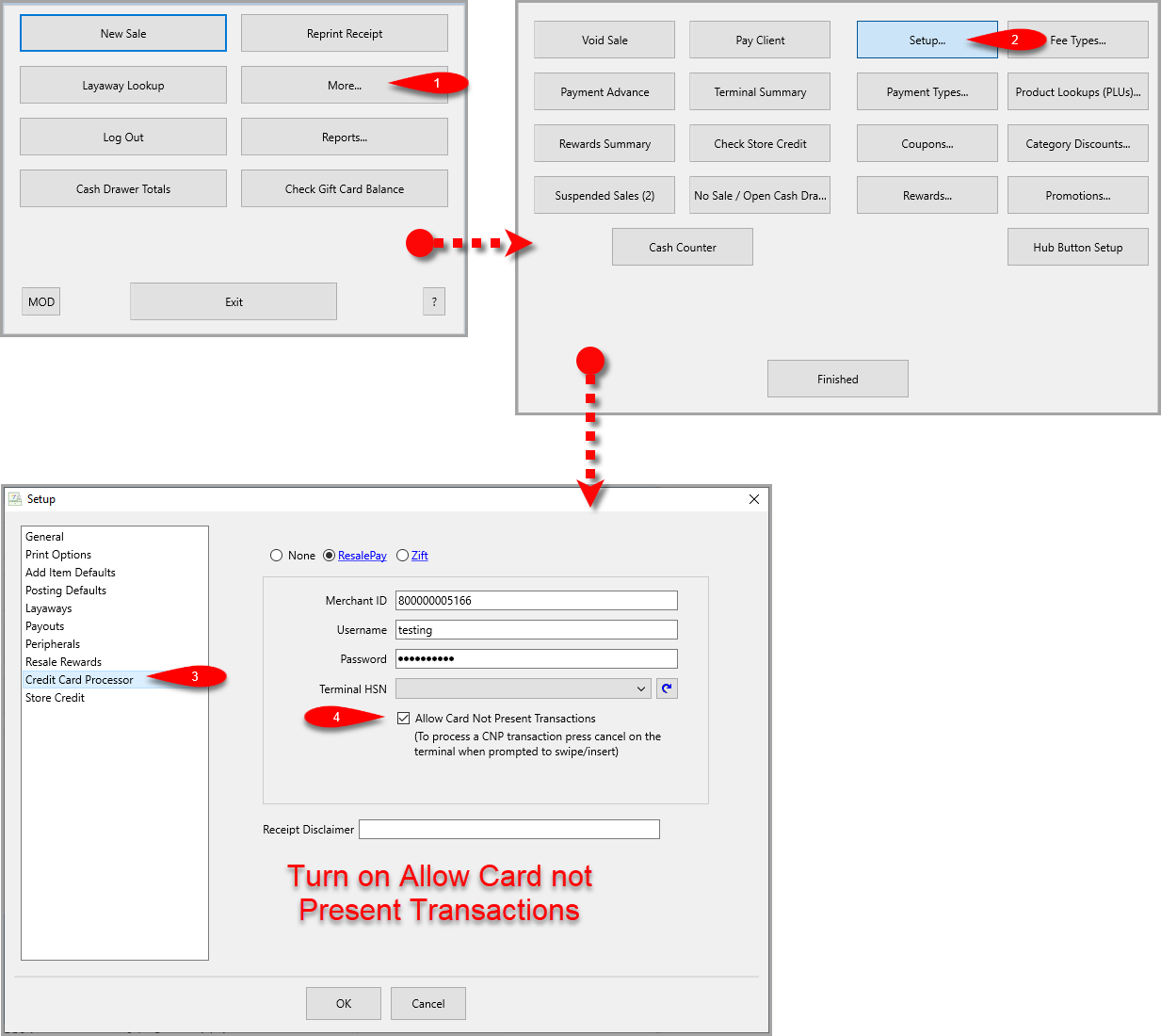
- From the Point of Sale Hub, select More. Sign in if prompted.
- Select Setup. Sign in again if prompted.
- Select Credit Card Processor on the left side of the Setup window.
- After reviewing the warning above, the store owner or authorized manager can select Allow Card Not Present Transactions, then select OK to save the setting.
Start the Sale and Enter the Payment
- From the Point of Sale Hub, select New Sale.
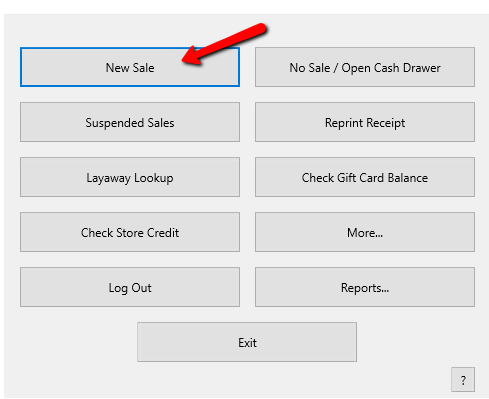
- Sign in if prompted, then select the appropriate posting mode for the sale.
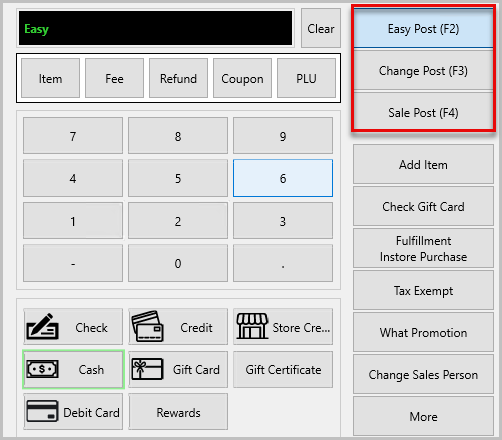
- Scan the item barcode or enter the account and item number in the entry field. Add each item to the sale, then review the items and total.
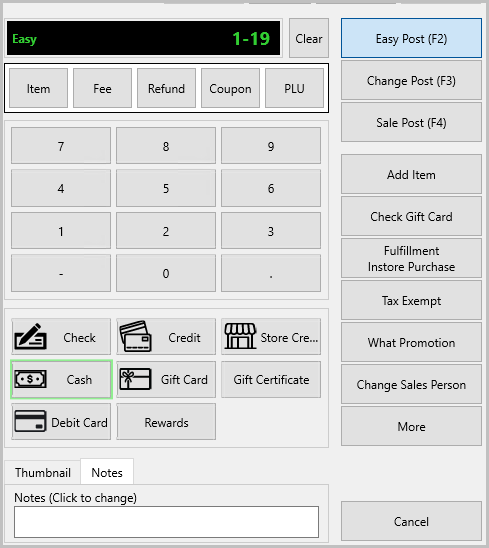
- Select the Credit payment button. The payment amount defaults to the sale total.
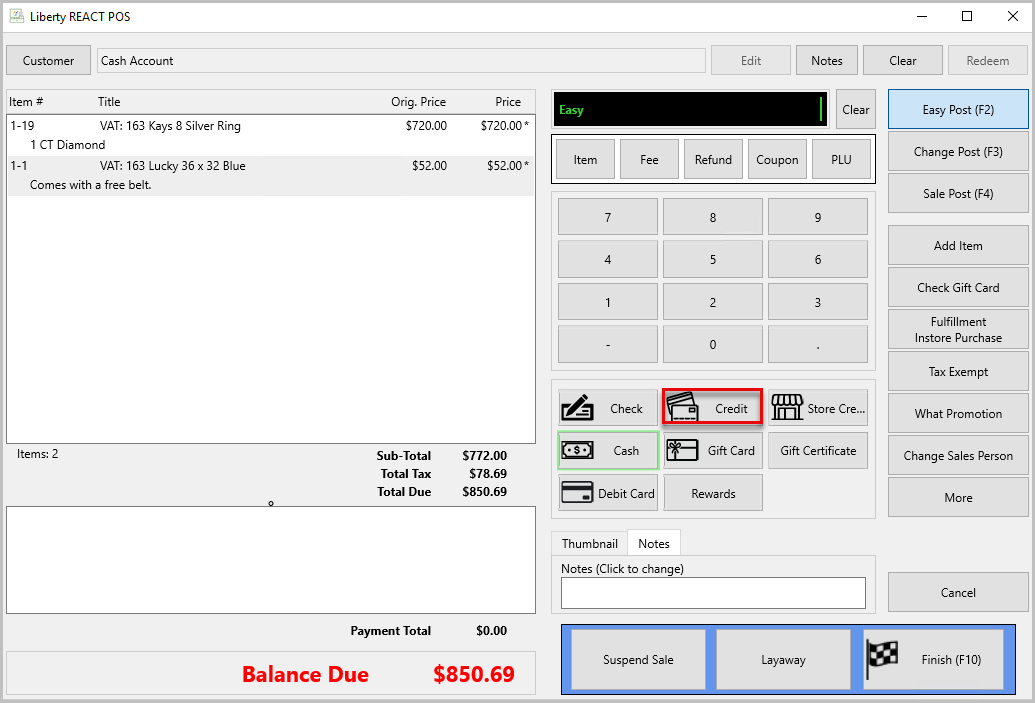
- When the payment terminal prompts you to swipe or insert the card, tap the X at the top left of the terminal screen to start manual card entry. Do not select Cancel in Liberty POS for this step.
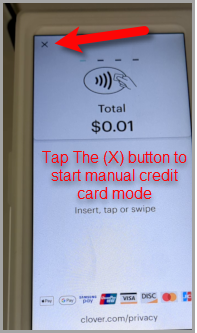
Note: This image shows the terminal control, not the amount for your sale. Confirm the actual payment amount when prompted. - Confirm the amount by selecting OK when prompted. Enter the card information directly on the payment terminal, then follow its remaining prompts. Do not enter card details into Liberty item descriptions or sale notes.
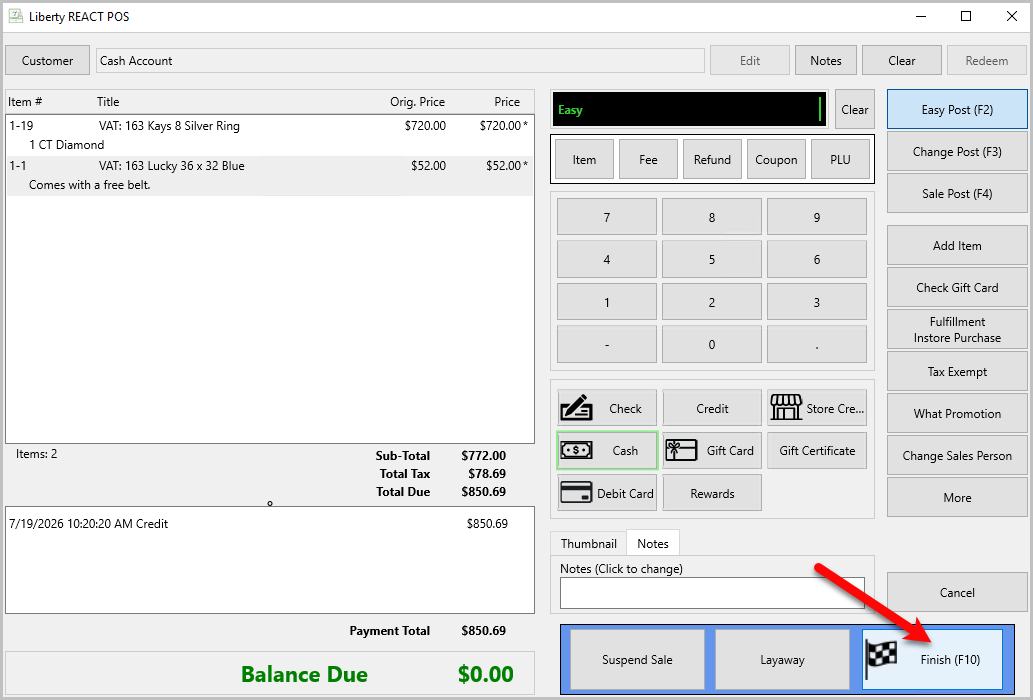
- Wait for the payment result. Once the payment is approved and recorded in POS, confirm the Payment Total and remaining Balance Due. For a fully paid sale, select Finish.
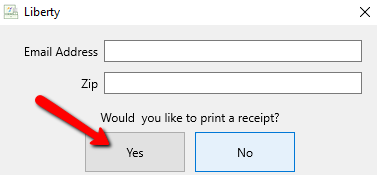
- Respond to the receipt prompt to complete the sale. Select Yes if you want to print a receipt.
If Manual Entry Is Not Available
Confirm that the store has chosen to allow card not present transactions and that the sale is using the configured ResalePay terminal. If the option is unavailable or the terminal does not offer the documented manual entry workflow, contact Resaleworld Support or your payment processor for assistance. Do not assume instructions for another processor or terminal apply.
If the payment is declined or the result is unclear, follow the terminal instructions and confirm the payment status before attempting another charge. Do not treat selecting Finish as confirmation that the payment was approved.
Next Article In Section
Click the following link to move to the next article in this section:
Set Default Credit Card Software